
Lian Wu is launching, and its QR code will be seen in two places: on a card at a street show, and on a giant sign outside a café. One link, two codes, each styled for its place, both with the app icon in the middle, and both must scan. All there is to start with is the link, the app icon and a picture of the mascot.
Open QR Coder in Lian Wu
Lian Wu is a Mac app that works with the AI you already use. Its Guilds are ready-made tools for one kind of job. Open Guilds in the sidebar and choose QR Coder, which makes QR codes and reads them on your Mac.
Type the link
In What the code says, choose Link or text and type the link. The code is drawn as you type, and Scans appears once Apple's Vision has read it on this Mac.
Code one: a playful look for a street show
A street show wants a playful code. Under Look, choose Bubbles: round dots and round corner markers. Under Colors, set the ink to a gradient in Lian Wu's coral, and give the markers their own color, leaf green. Drop the app icon on the code to put it in the middle, on a circle. Error correction rises to the strongest by itself, and the code is read again after every change.
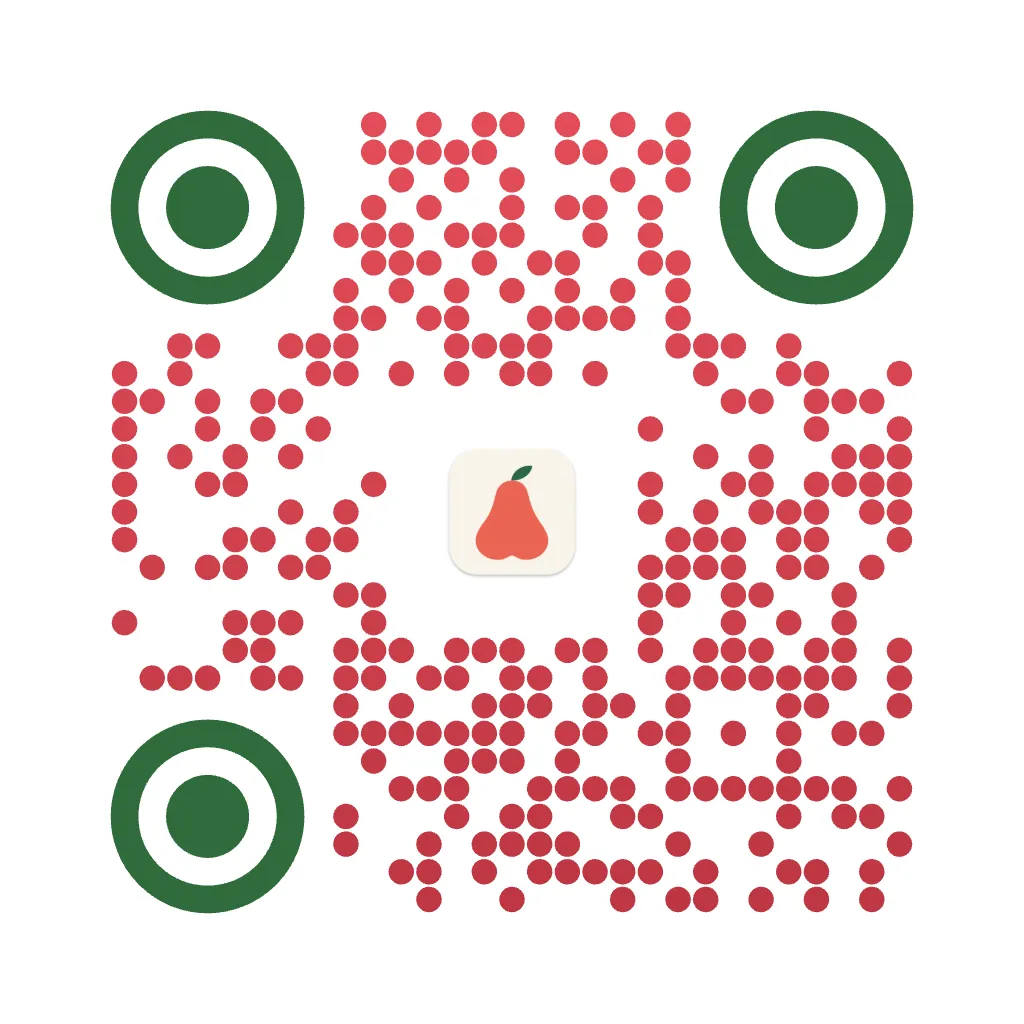
Put code one in its place
Choose Bring into Painter. Painter opens with the code attached as the image to change, and a description that starts with what keeps it scannable. Drop in the mascot picture; it comes in as a reference. Then ask for the scene.
Turn this QR code into artwork. Keep the three corner squares and the pattern of dark and light squares so it still scans. Make it a photo of a city plaza in daylight where two cute mascots busk, each exactly like the reference character: the same coral wax-apple body, narrow at the top and wide with two lobes at the bottom, one green leaf, a small smiling face, short arms and legs, as a glossy 3D toy about one metre tall. One sings into a microphone, one plays a guitar. Between them a light-blue cloth bag hangs on a music stand, with a white card showing this QR code large, flat and facing the camera: every dot, the three round corner markers and the app icon in the middle unchanged, sharp and high-contrast. Under the code: "Scan to try Lian Wu". No other writing.
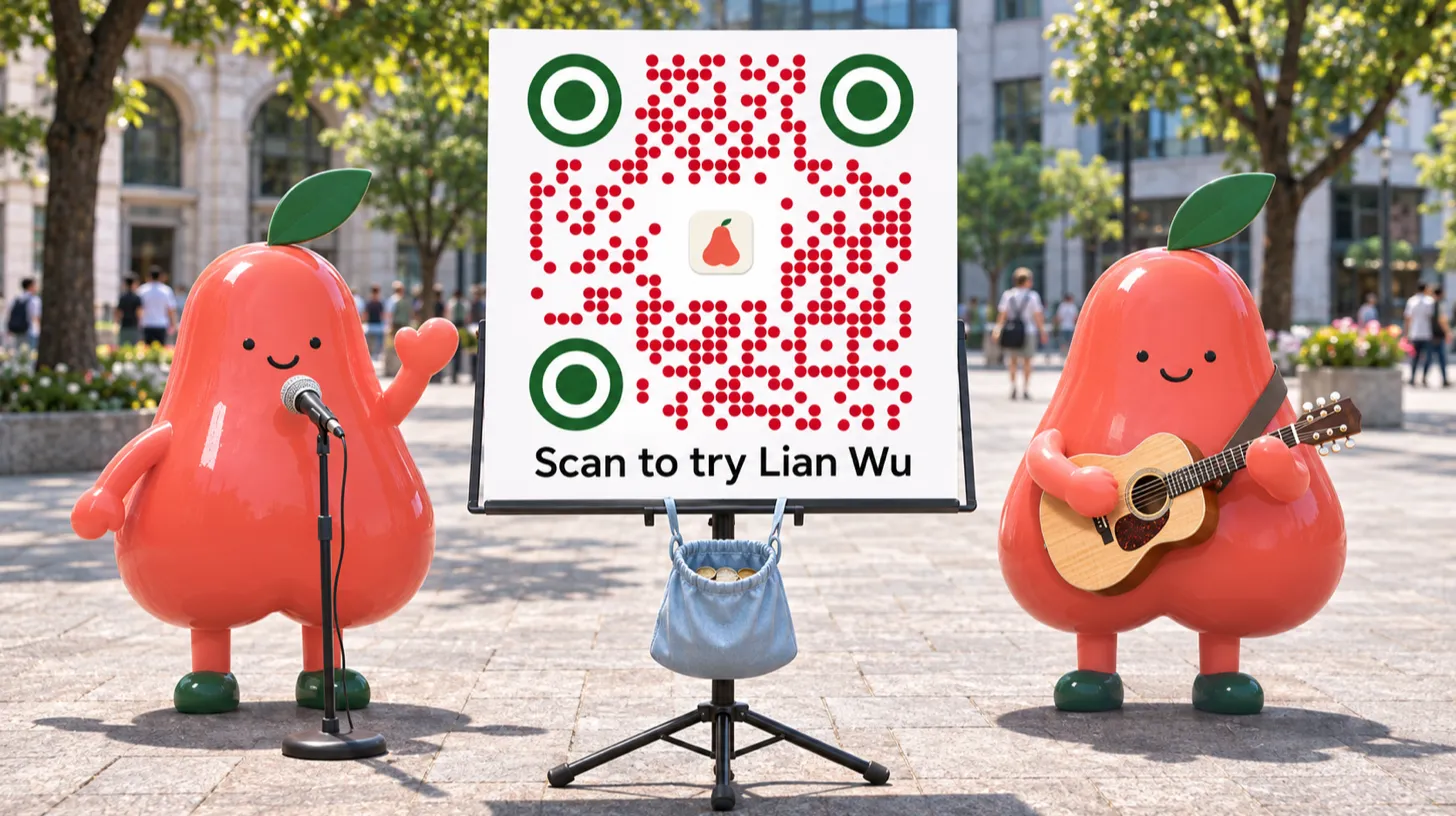
Code two: change it for a café's giant sign
The same link also goes on a giant sign outside a café, so the code gets a second look. Back in QR Coder, Saved has kept code one: open it and change it. Switch the Look to Classic for a plainer, stronger pattern. Set the ink to one dark green for contrast and the markers to coral. Make the icon bigger, on a square. Under Save as, choose 2048 px for print. Each setting changes on its own; the link stays the same.

Put code two in its place
Bring the second code into Painter the same way, and drop in the mascot again as the reference. Ask for a mascot holding a giant phone-shaped sign outside Lian Wu Café.
Turn this QR code into artwork. Keep the three corner squares and the pattern of dark and light squares so it still scans. Make it a photo outside a café whose sign reads "Lian Wu Café", daylight after rain. One cute mascot, exactly like the reference character: the same coral wax-apple body, narrow at the top and wide with two lobes at the bottom, one green leaf, a small smiling face, short arms and legs, as a glossy 3D toy about one metre tall, holds up beside itself a giant cardboard sign shaped like a smartphone, taller than itself. On its white screen: "Lian Wu" at the top, then this QR code large, flat and facing the camera, every square, the three square corner markers and the app icon in the middle unchanged, sharp and high-contrast, then "SCAN ME". No other writing on the sign.
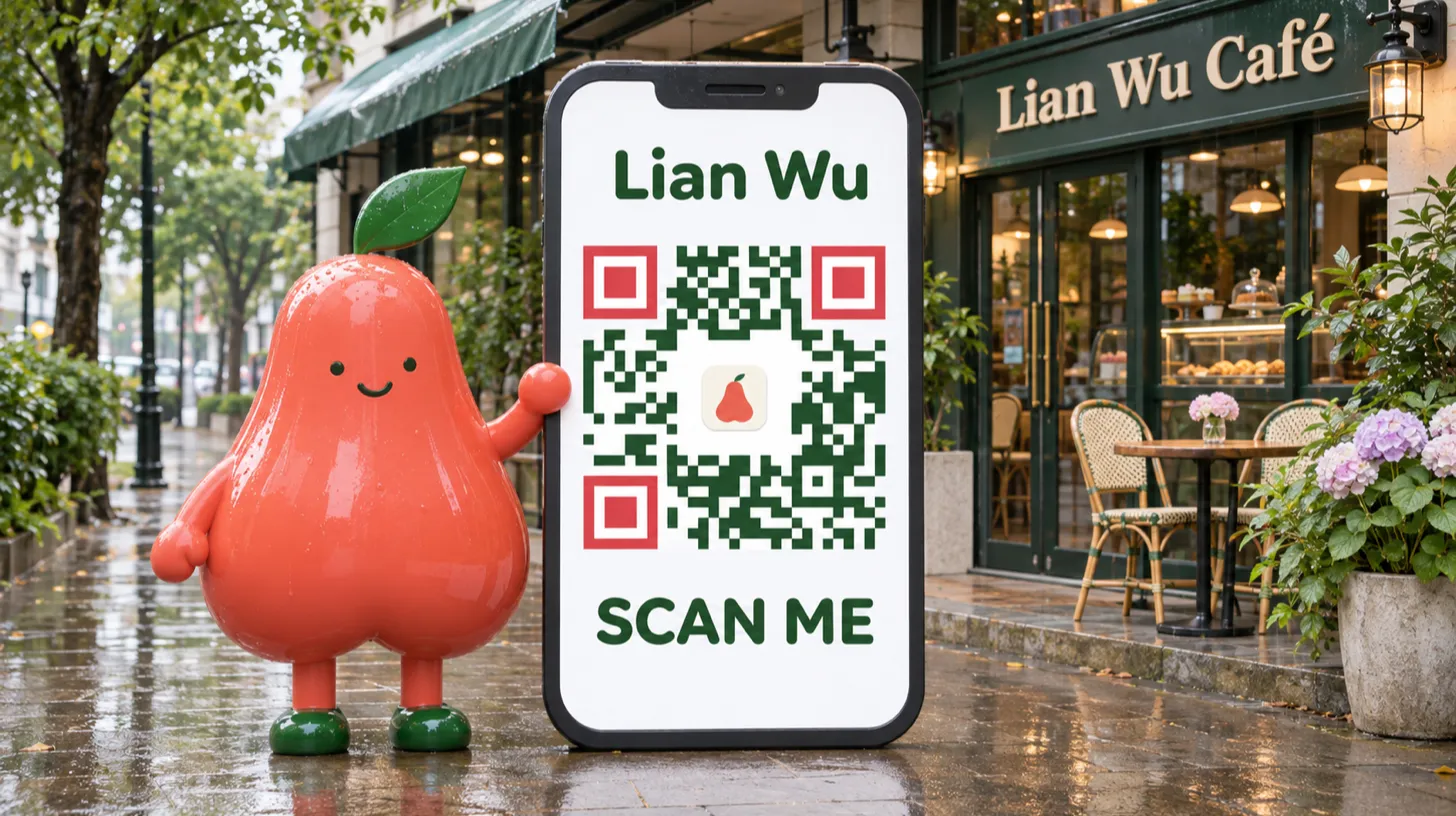
Read both pictures back
A drawing can change a code's squares, so read each picture before using it. In QR Coder, open Read and drop a picture on it. Vision reads it on the Mac and shows what it says. Keep a picture only if it reads back as https://lianwu.app.
The result
One link became two codes, each styled for where it is seen, each with the app icon in the middle, and each still opening lianwu.app from its picture.
Keep the codes and take the files
QR Coder keeps both codes under Saved, with their looks and the picture in the middle, ready to change again for the next place. Show in Finder gives each code's PNG, and an SVG that stays sharp at any size.
Music in the film: "Amazing Grace" by Casa Rosa, from the YouTube Audio Library.